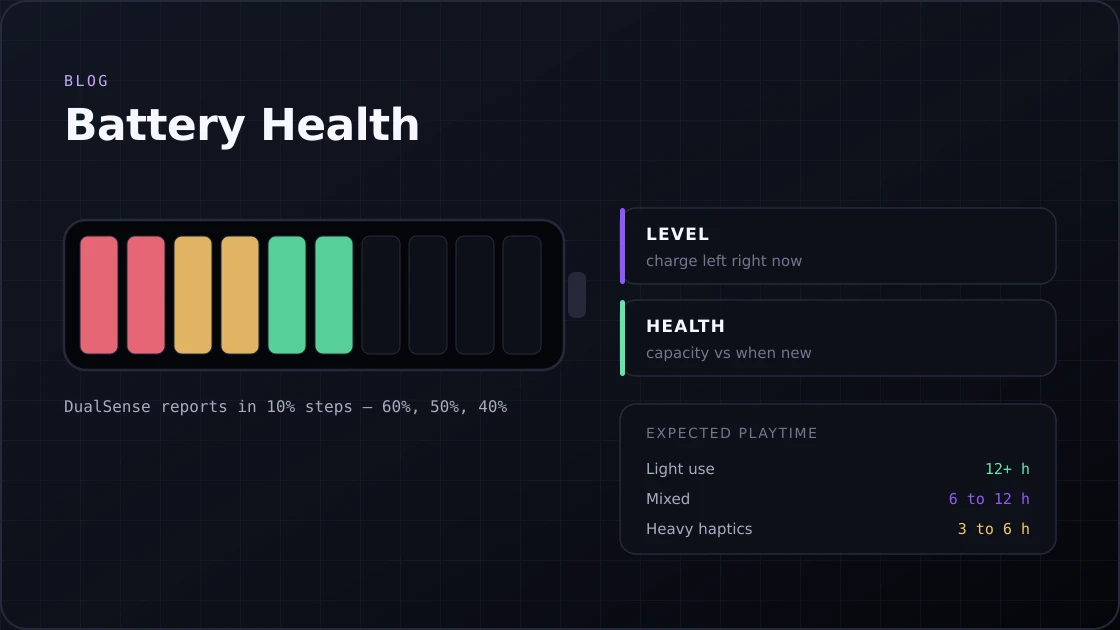
How to Check PS5 Controller Battery Health?
Not sure how to check PS5 controller battery health or Xbox battery level? Follow this guide to monitor, fix, and extend your controller battery life.
15 min · August 6, 2026
Got stick drift on PS5, Xbox, or Switch 2? Test your controller, identify the causes, and fix it for good with these proven steps.
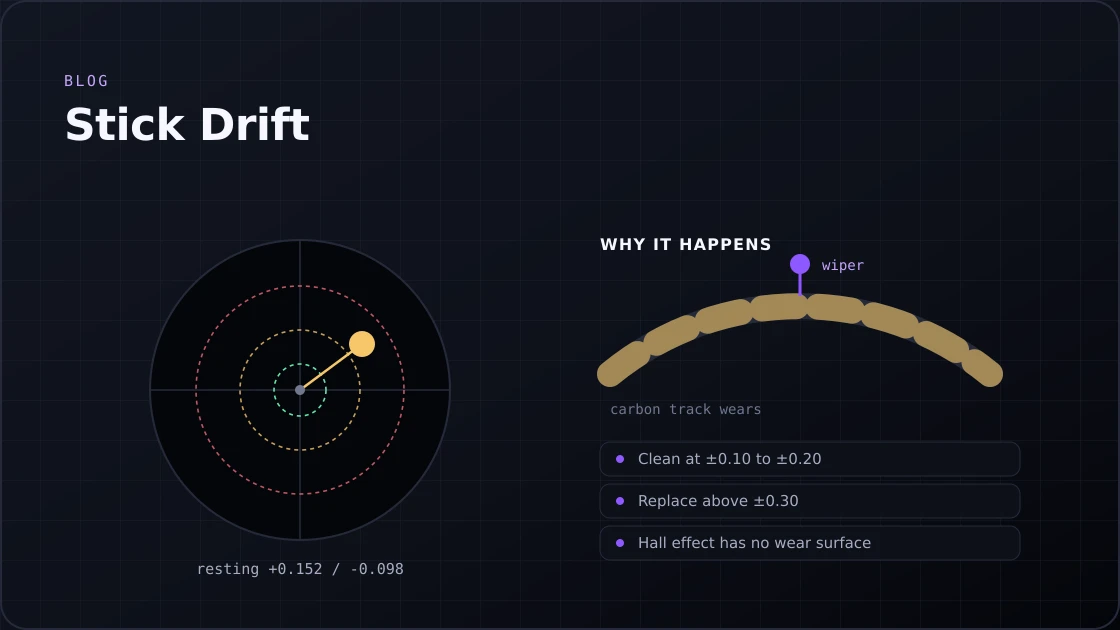
A stick drift is when your character walks into a wall while your thumb is still resting on the controller. The camera drifts slowly to the right during a cutscene. That's stick drift, and if you've owned a console for more than a year or two, you've probably run into it at least once.
Stick drift comes from a sensor design that every major console still relies on, and that design wears out the same way no matter which brand's controller you are using. PS5, Xbox, Switch 2, it makes no difference. The fix depends on how bad the drift is, but most cases can be diagnosed in under a minute with a gamepad tester and can be fixed without spending a cent. The worst cases now have real permanent fixes, too. This guide covers what's happening inside your controller, how to tell drift apart from other problems, and the exact steps to deal with it on every major platform.
Stick drift happens when your analog stick reports movement even though nobody is touching it. The game reads this as a real input, so your character walks, your camera pans, or your crosshair creeps to one side, all on its own. It affects PlayStation, Xbox, Nintendo, and PC controllers alike, and it tends to show up gradually rather than all at once. You might not notice it at first because a game's built-in dead zone is hiding it.
Drift and jitter are often confused, but they aren't the same problem. Drift is a steady, low-level pull in one direction when the stick is at rest. Jitter is messier: the reported position jumps around unpredictably from one frame to the next, sometimes snapping fully to one side for a split second. Drift is annoying. Jitter is worse for competitive play because it's harder to compensate for with a dead zone setting since the signal isn't consistent in one direction.
| Symptom | Drift | Jitter |
|---|---|---|
| Movement at rest | Slow, steady pull one way | Random, jumps around |
| Predictability | Consistent | Unpredictable |
| Common cause | Worn contact track | Dirty or damaged contact, sometimes loose wiring |
| Fixable with a dead zone | Usually, for mild cases | Rarely helps much |
Every controller still uses a sensor design from the 1970s called a potentiometer. Inside the stick module, a small metal arm called a wiper rests against a curved carbon track. As you tilt the stick, the wiper slides along that track, and the controller reads the resulting change in resistance to figure out where the stick is pointing. It's a cheap, reliable way to measure position, and it's also the entire reason drift exists.
A few things that fail the potentiometer:
Before you start cleaning or opening anything, confirm what you're actually dealing with. A controller test takes thirty seconds and saves you from chasing the wrong problem.
Here's roughly how to read the numbers once you see them:
| Axis reading at rest | What it means |
|---|---|
| 0.00 to 0.05 | No real issue, this is normal noise |
| 0.05 to 0.15 | Mild drift, manageable with a small dead zone |
| 0.15 to 0.35 | Noticeable drift, a fix is worth doing |
| Above 0.35 | Severe, the stick likely needs cleaning or replacing |
If you don't have a browser handy, each console has a built-in way to check the same thing:
Whichever method you use, leave the controller untouched on a flat surface for at least ten seconds. Even a slight resting angle from your palm can register as false movement, so hands fully off is the only way to get an honest reading.
A gamepad button test alongside this is also worth running if buttons feel unresponsive, since that points to a separate problem from stick wear.
Once you've confirmed drift, work through these in order. Each one costs nothing and takes only a few minutes, so there's no reason to open up the controller.
1. Reset the controller first.
2. Update the controller firmware. Sony, Microsoft, and Nintendo all push out updates that touch stick calibration from time to time.
3. Recalibrate the sticks. This works best when drift shows up gradually rather than suddenly, since it resets the software's idea of where the center is. It won't undo physical wear on the contact track, but it buys time.
4. Adjust the dead zone as a stopgap. Most competitive games let you set a minimum input threshold, often labeled exactly that. Start around 0.05 and nudge it up in small steps until the drift stops registering. Push it too far past 0.15 to 0.20, and the stick starts feeling sluggish, so treat this as a temporary patch while you sort out a real fix.
DualSense controllers use the same family of potentiometer modules found in the previous generation DualShock 4, soldered directly to the main circuit board. That makes a full module swap a moderate to advanced repair, but the cleaning and software steps below don't require opening anything.
1. Cleaning under the stick skirt fixes a large share of cases caused by dust rather than worn contacts. Use 99 percent isopropyl alcohol only. Standard 70 percent rubbing alcohol contains water and oils that can leave residue on the contacts and make things worse over time.
2. A standard DualSense doesn't have a system-wide dead zone setting, so adjusting that has to happen inside each game's own controller menu. If you own a DualSense Edge, you get more control: go to Settings, then Accessories, then DualSense Edge Wireless Controller, then Custom Profiles, and you can set stick sensitivity and dead zone directly on the console.
3. Switch from Bluetooth to a wired USB-C connection and test again. Bluetooth interference can occasionally cause false readings that look identical to hardware drift, and some users have found that their PS5 stick drift problem disappears entirely over a cable.
4. If your controller is still under warranty, it's worth contacting PlayStation Support before opening the case yourself, since that resets the clock on any future claim.
Xbox Series X and Series S controllers use ALPS potentiometers rated for roughly two million cycles. Heavy players, especially anyone putting in long sessions of fast-paced shooters, can burn through that lifespan in well under a year.
1. The Xbox app has a built-in recalibration tool that's worth trying before anything else. Open the app, select the three-dot menu under your controller, choose Recalibration Options, pick the stick that's drifting, and follow the on-screen prompt to rotate it through its full range a few times.
2. If software calibration doesn't help, cleaning the contacts is the next step, and it does require disassembly. Pop the grip rails off the back handles with a plastic pry tool, then peel back the sticker inside the battery compartment to reveal a fifth hidden screw.
Remove all the screws with a T8 security driver, open the shell, and locate the potentiometer modules on the side of the stick assembly. Clean the contact discs with electronics contact cleaner, not a household spray, then reassemble and run the recalibration tool again.
3. Standard Xbox controllers come with a 90-day limited warranty from Microsoft, and opening the case will void that. If your controller is still within that window, it's worth filing a claim first.
Independent teardowns of the Joy-Con 2 confirmed it uses the same fundamental design as the original Switch: an Alps-style potentiometer with a graphite wiper sliding across a resistive track.
A few things to know if you're dealing with stick drift:
A few habits make a real difference in how long your sticks last:
The only permanent fix for an already worn potentiometer is replacing it with something that doesn't rely on physical contact at all. Hall effect sensors read stick position using magnets instead of a wiper on a track, so there's no friction and nothing to wear down. TMR sensors take that a step further, offering better precision and lower power draw, and they're starting to show up in performance-focused controllers built specifically around eliminating drift.
| Controller | Sensor type | Platform |
|---|---|---|
| GuliKit KingKong 2 Pro | Hall effect | PS5, Xbox, Switch, PC |
| 8BitDo Ultimate | Hall effect | Xbox, PC |
| GameSir G7 SE | Hall effect | Xbox, PC, officially licensed |
| SCUF Valour | TMR | Xbox |
| SCUF Omega | TMR | PS5 |
Aftermarket drop-in modules are also available for standard PS5 and Xbox controllers, usually for somewhere between 12 and 20 dollars, though installing one on those platforms means soldering rather than the simpler swap Joy-Con users get.
Repairing isn't always the right call. A few signs, it's time to retire the controller instead:
No. Cleaning and dead zone changes extend the life of a worn stick but don't reverse the wear. Replacing the module is the only permanent fix, and that means soldering on those two platforms.
Yes. The left stick handles constant movement input in most games, so it tends to wear out and drift before the right stick, which usually only sees intermittent use for camera control.
It can contribute to false readings that look like drift. Switching to a wired USB-C connection is a quick way to rule out signal interference before assuming the potentiometer has worn out.
No. Nintendo confirmed it didn't move to Hall effect sensors for the Joy-Con 2. Build quality is better than the original Switch, but the underlying wear mechanism is the same.
It reads the raw axis values straight from your controller through your browser, using the same Gamepad API your games rely on, and displays them as numbers.
Not sure how to check PS5 controller battery health or Xbox battery level? Follow this guide to monitor, fix, and extend your controller battery life.
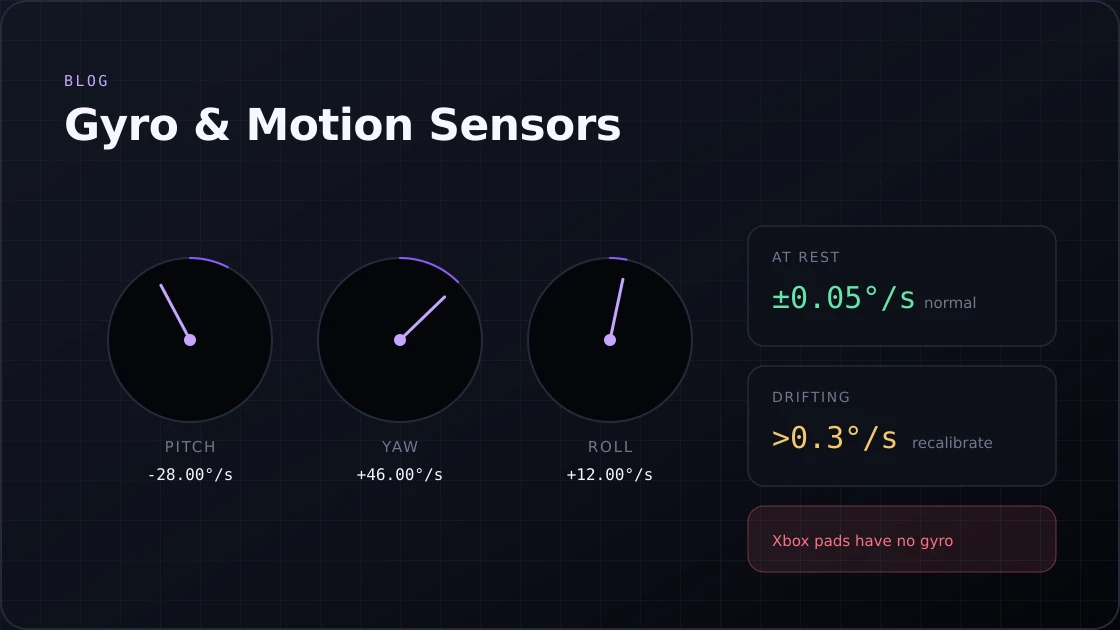
Test your controller's gyro sensor online. Check pitch, yaw & roll on PS5, Switch & more. Spot gyro drift in seconds. No download required.
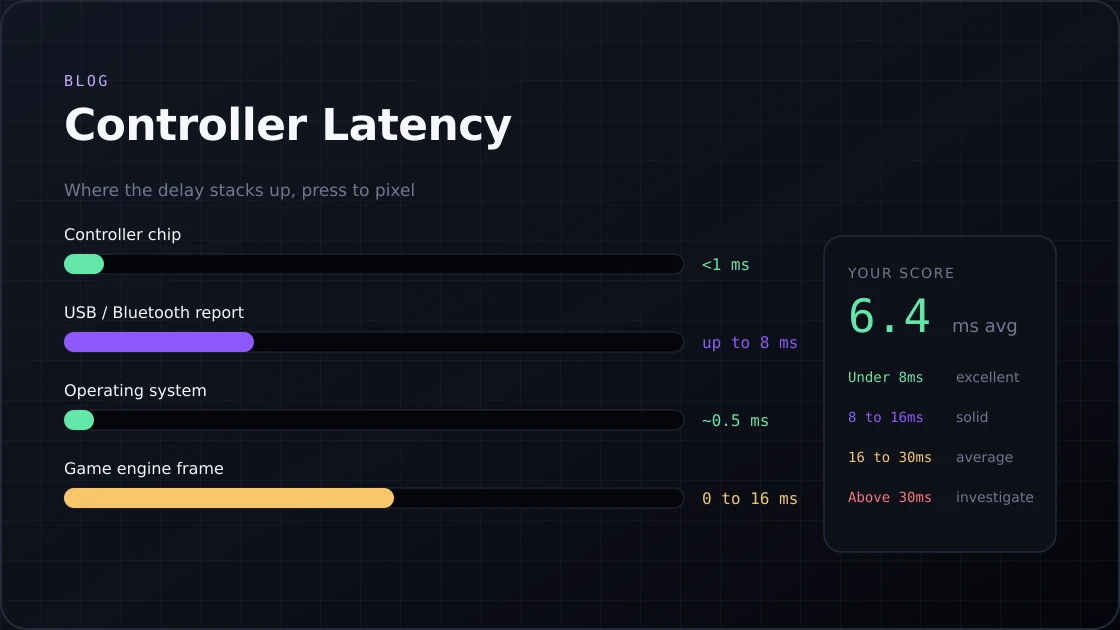
Test your controller's input lag and response time in seconds with our free controller latency tester. Works for PS5, PS4, Xbox, and PC.
Or go back to the gamepad tester and read your controller's live values.