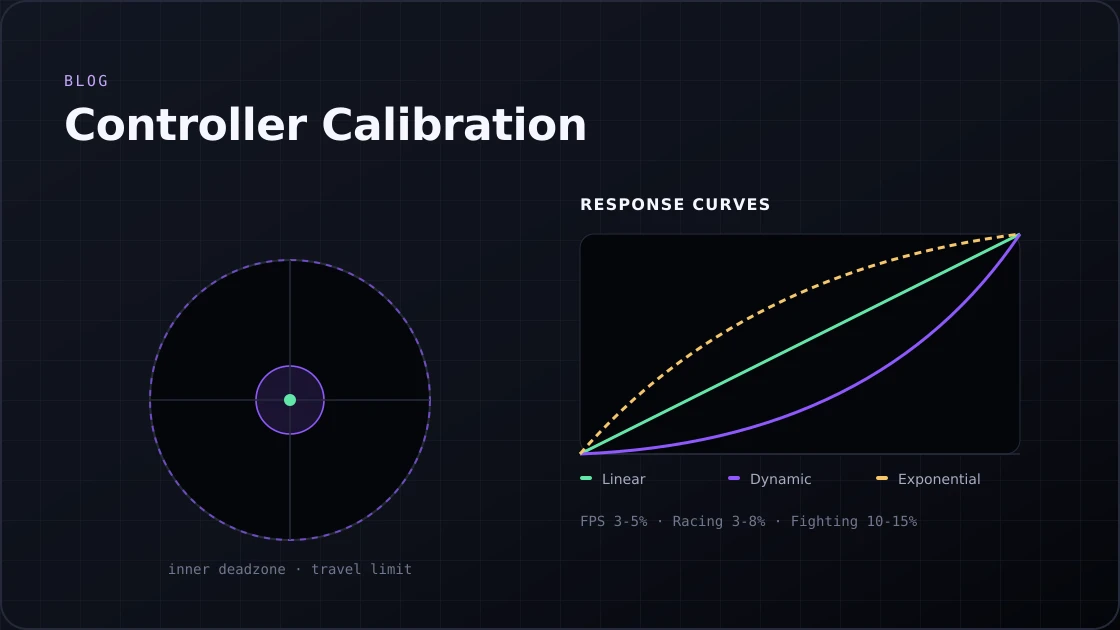
Controller Calibration Guide: Fix PS5, PS4 & Xbox Drift (2026)
Fix stick drift and calibrate your PS5, Xbox, or PS4 controller. Step-by-step guide with deadzone tips and response curve settings that work.
12 min · August 6, 2026
Not sure how to check PS5 controller battery health or Xbox battery level? Follow this guide to monitor, fix, and extend your controller battery life.
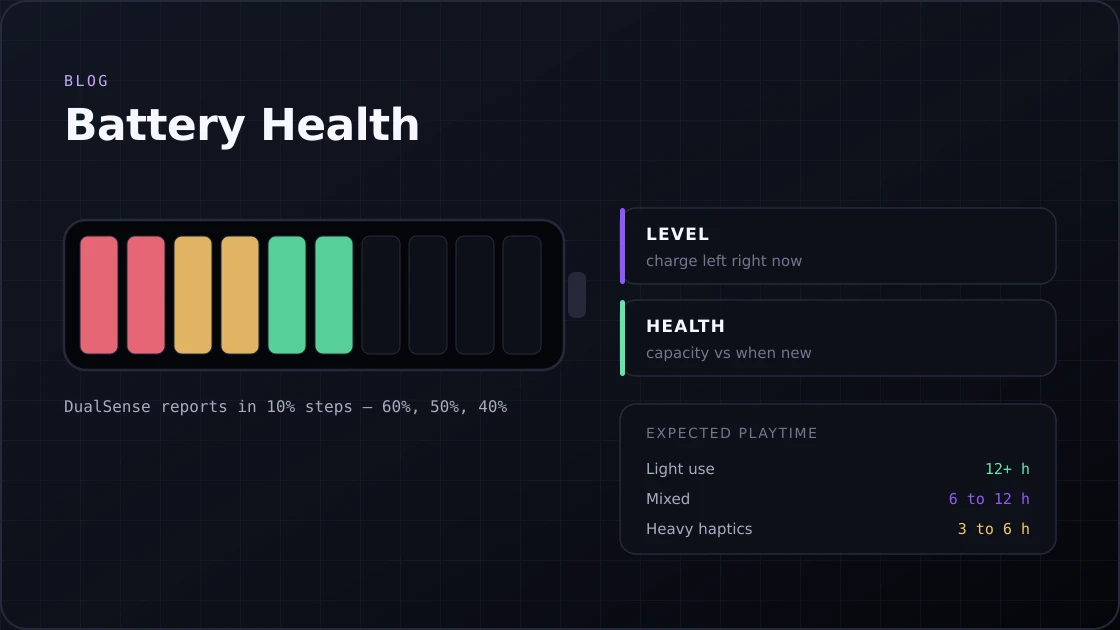
The PS5 DualSense packs a 1560 mAh lithium-ion battery. On paper, that gives you 6 to 12 hours per charge. In real life, turn on heavy haptics and adaptive triggers, and that number drops fast. Knowing your battery health, meaning how much capacity the battery still holds compared to when it was new, is what actually tells you if something is wrong — and it pairs naturally with a full gamepad tester pass on the buttons and sticks.
This guide covers every method for both consoles and PC, plus what to do when the battery starts degrading. Whether you want a quick percentage check or a full picture of your battery's condition over time, you will find it here. It covers the causes of fast drain, tips to extend battery life, and when to replace the battery entirely.
People use both of these terms as if they mean the same thing.
Battery level is how much charge is left right now. It changes every session.
Battery health is how well the battery holds a charge compared to when it was new. A controller with 100% level but degraded health might die after 3 hours instead of 12.
The PS5 DualSense uses a built-in lithium-ion battery, the same as your phone. Every charge cycle wears it down slightly. After a year or two of heavy use, it is completely normal to notice shorter sessions between charges.
What speeds up that degradation:
The sweet spot for long-term health is keeping the battery between 20% and 80%. Most people do not think about this until the battery is already half dead.
The battery health checker tool reads your controller's live battery data using the browser's Gamepad API. Here is exactly how to use it.
Open your device's Bluetooth settings and pair your controller. USB connections do not pass battery information through the Gamepad API on most controllers, so Bluetooth is required for this to work.
Firefox has limited Gamepad API support for battery data. Chrome or Edge gives the most reliable reading.
The browser does not detect the controller automatically. It waits for a button press due to browser security requirements. Press any button once the page is loaded. This is the same activation step the gamepad tester uses.
Once connected, the battery card shows:
| Level | Colour | Recommended Action |
|---|---|---|
| 76% to 100% | Green | Good, no action needed |
| 51% to 75% | Green | Fine for most sessions |
| 26% to 50% | Yellow | Consider charging before a long session |
| 11% to 25% | Orange | Charge soon |
| 0% to 10% | Red | Charge immediately |
The PS5 gives you a few places to check battery status. The quickest is the Control Center.
This works while you are in a game or on the home screen. You do not need to exit anything.
That is the fastest way to check on PS5 controller battery health without leaving your game.
If the Control Center is blocked by a game overlay or you want a cleaner view, go through Settings instead.
This screen is also useful if you are troubleshooting and need a stable, unobstructed reading.
The light bar on the DualSense does not show exact percentages, but it gives you useful charging status info.
| Light Behavior | What It Means |
|---|---|
| Pulsing orange | The controller is charging |
| Orange light off | Fully charged |
| Blue light (solid) | On and connected, not charging |
| Flashing orange | Charging in rest mode |
| No light | Powered off or out of battery |
One thing worth knowing: a blue light does not mean the battery is full. It just means the controller is on and paired.
Windows does not automatically show PS5 battery info. The DualSense shows up as a generic gamepad, so the console-style percentage readout is not there by default. There are two solid ways to get around this.
The battery health checker reads your DualSense battery level directly through the browser using the Gamepad API. No downloads, no setup. It works on any Windows or Mac PC.
Here is what to do:
A few things worth knowing:
This does not always work, but it is worth trying on Windows 11 before anything else.
Results vary depending on your Bluetooth chipset and drivers. Windows 11 shows this more consistently than Windows 10.
Xbox controllers work differently from PlayStation controllers. The standard Xbox Wireless Controller runs on AA batteries or an optional rechargeable pack. Battery reporting is also more limited compared to PS5, but you still have clear ways to monitor it.
This is the simplest method and requires nothing extra.
It is not a precise percentage. More of a rough indicator split into levels. But for a quick check before a session, it tells you what you need to know.
Windows can detect Xbox controller battery status when the controller is connected wirelessly.
This works more reliably with the official Xbox rechargeable battery pack than with AA batteries. AA batteries give the controller no way to measure cell age or health, only current voltage.
Xbox controllers report battery status differently depending on how they are connected and what type of battery is in use.
Microsoft routes detailed battery information through the console and Windows system rather than open browser APIs. If a browser tool shows no battery data for your Xbox controller, use the console guide or Windows Settings method above.
Knowing the numbers helps you judge whether your controller is performing normally or not.
| Controller Model | Battery Capacity | Expected Playtime |
|---|---|---|
| DualSense (standard) | 1560 mAh | 6 to 12 hours |
| DualSense Edge | 1060 mAh | 6 to 7 hours |
The Edge has a noticeably smaller battery. That is the trade-off for its modular design. If your Edge is dying after 4 or 5 hours, that may still be within the normal range depending on settings.
| Usage Type | Estimated Playtime |
|---|---|
| Light use (haptics off, dim LED) | 12+ hours |
| Mixed gaming (moderate haptics) | 6 to 12 hours |
| Heavy haptics, adaptive triggers, speaker | 3 to 6 hours |
If you are hitting under 3 hours consistently with light settings, that is a sign to check the PS5 controller battery health for actual degradation.
Battery health does not disappear overnight. It drops gradually, and these are the signs to watch for.
This is usually the clearest sign. If unplugging the USB-C cable causes the controller to turn off immediately, the battery is either fully dead or has disconnected internally.
Compare your current playtime to the original spec. A new DualSense lasts 6 to 12 hours. If yours now lasts 3 to 4 hours with haptics turned down, the battery has degraded.
Reading 80%, then suddenly 40% five minutes later, is not normal. Erratic percentage drops usually mean the battery's calibration is off or the cells are worn unevenly.
Some warmth during charging is normal. But if the controller is noticeably hot to the touch, that is a sign the battery or charging circuit is under stress. Stop using it and let it cool down before charging again.
This one is serious. If the back of the controller is bulging or the buttons feel stiff, the battery may be swollen.
A swollen battery is a safety issue, not just a performance issue.
Some of these are obvious. Others are habits most people have without realizing the damage they cause.
The DualSense has more power-hungry features than any previous PlayStation controller. The adaptive triggers, haptic motors, built-in speaker, microphone, and light bar all draw power constantly.
Games that use these features heavily, like anything with constant vibration or resistance in the triggers, will drain the battery two to three times faster than a simple 2D game.
Putting the controller down without turning it off keeps the Bluetooth radio and internal systems running. Over a gaming session of a few hours, this adds up. Turn the controller off completely when you are done.
Store your controller at room temperature. Charging in a hot car or leaving it on a warm surface near a PC heats the battery faster than normal use does. Cold environments are also bad for lithium-ion cells, reducing usable capacity temporarily.
These are settings you can change right now. Some of them add 2 to 4 hours of extra playtime per charge.
This one change alone makes a noticeable difference in games that use haptics constantly.
Same path as above. Find the Brightness of Controller Indicators and set it to Dim. The light bar is small but runs continuously, and dimming it adds measurable playtime over a long session.
Press the mute button below the PS button on the DualSense to disable the built-in microphone. If you do not use voice chat, there is no reason to leave it on.
The controller turns off automatically when not in use instead of sitting idle and draining the battery.
This is the single most effective thing you can do for long-term battery health. Lithium-ion batteries degrade faster at both extremes. You do not need to be obsessive about it, but avoiding regular deep discharges and overnight charges adds months to the battery's useful life.
Xbox controllers use AA batteries by default, which removes the degradation concern but adds a running cost.
| Battery Type | Pros | Cons |
|---|---|---|
| AA alkaline | Easy to replace, widely available | Ongoing cost, not eco-friendly |
| AA rechargeable (NiMH) | Cost-effective long-term | Slightly lower voltage output |
| Official Xbox rechargeable pack | Best reporting, clean design | Extra cost upfront |
The official Xbox rechargeable pack gives the most accurate battery readings and integrates better with Windows battery reporting.
If you are consistently getting under 3 hours of playtime with all power-saving settings on, the battery probably needs replacing.
Sony does not sell replacement batteries directly. Third-party replacement batteries are available online, ranging from 1560 mAh (original capacity) to 4000 mAh higher-capacity options that can give 15 to 20 hours of play.
Replacing the battery yourself requires taking the controller apart. It is doable with the right tools, but it voids the warranty. If your controller is still under warranty, contact Sony support first.
If the repair cost does not make sense, a new standard DualSense runs around $60 to $70. For launch-era controllers that are 3 to 4 years old, replacement sometimes makes more economic sense than repair. At that age it is worth checking the sticks too, since stick drift usually arrives around the same time.
This sometimes happens after a firmware update or on controllers that are not fully updated. Try:
The DualSense reports battery in 10% increments. It can sit at 60% for an hour before dropping to 50%. This is not a fault. The hardware samples battery state in fixed steps, so you will never see 63% or 47%.
Some DualSense controllers disconnect or behave erratically at low battery even though the percentage shown is not zero. This can happen when the battery cells are unevenly aged. A calibration cycle sometimes helps: drain fully to 0%, then charge to 100% without interruption.
Most wireless controllers, including the DualSense and Xbox, automatically reduce vibration motor power at low battery to extend remaining playtime. This is normal. If it happens above 30%, the battery may have degraded beyond normal use.
Lithium-ion batteries typically last 300 to 500 full charge cycles before capacity drops. With regular daily use, that works out to roughly 1.5 to 2 years before you see a reduction in playtime.
Sony's DualSense battery management chip reports charge in 11 fixed levels from 0% to 100% in 10% increments. It is a hardware design decision.
Yes. Modern controllers have protection circuits that prevent overcharging. Playing while charging does generate extra heat, though, and long-term heat exposure degrades the battery faster.
A DualSense charges from 0% to 100% in roughly 3 hours using a USB-C cable with a good power source.
Yes. Connect your DualSense to your PC via Bluetooth and use a browser-based battery health checker. It reads the battery level in real time without needing the PS5 console.
Only if the setting is turned on. Go to Settings > System > Power Saving > Features Available in Rest Mode, and enable USB power supply.
Fix stick drift and calibrate your PS5, Xbox, or PS4 controller. Step-by-step guide with deadzone tips and response curve settings that work.
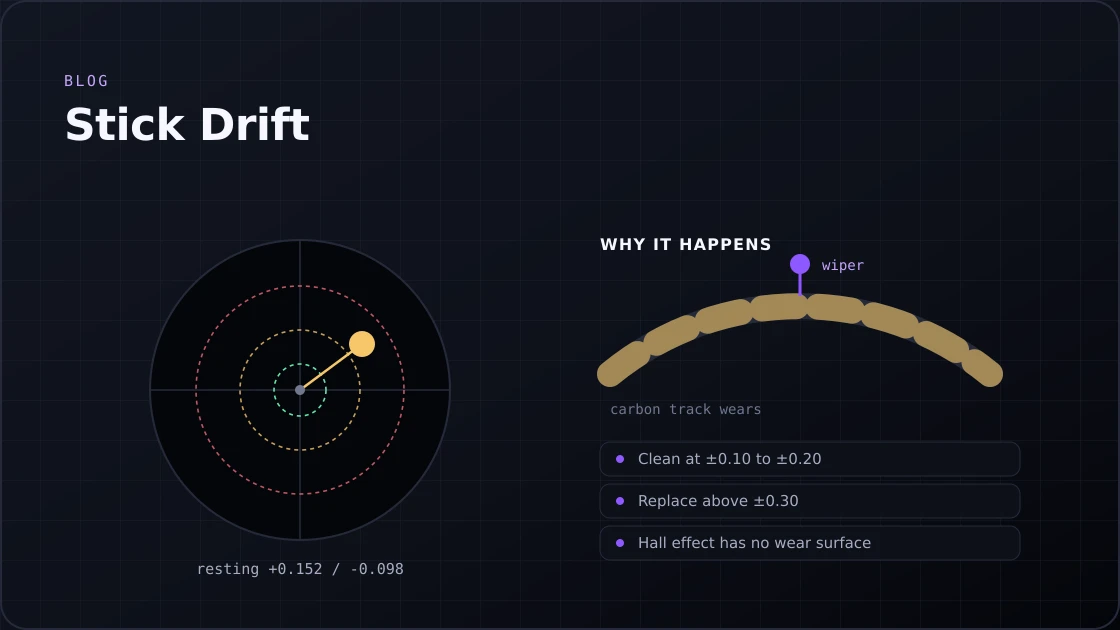
Got stick drift on PS5, Xbox, or Switch 2? Test your controller, identify the causes, and fix it for good with these proven steps.
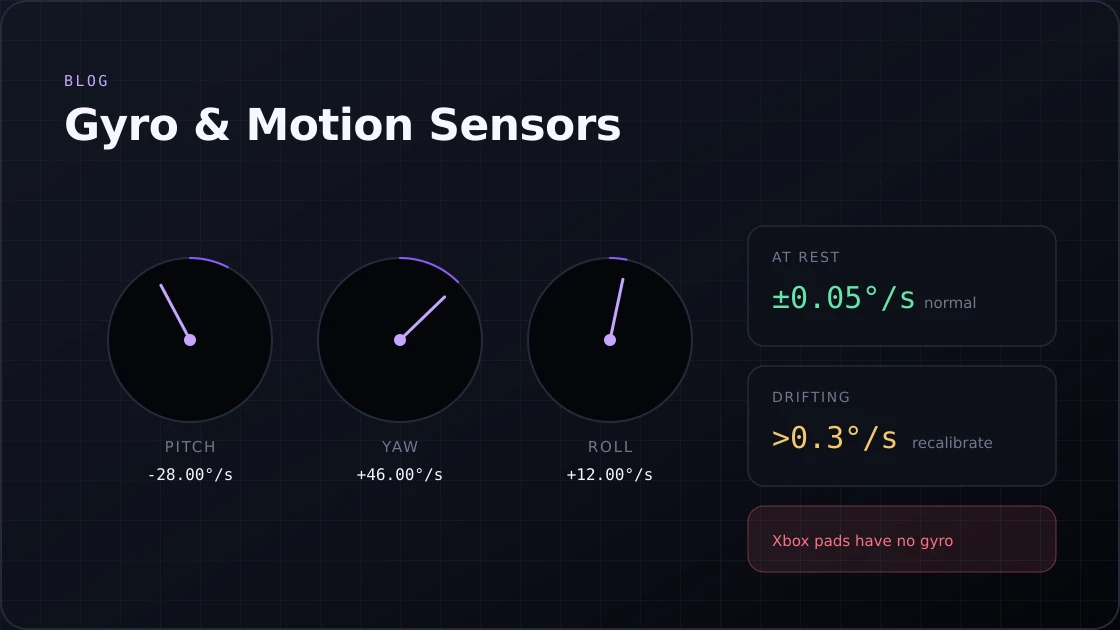
Test your controller's gyro sensor online. Check pitch, yaw & roll on PS5, Switch & more. Spot gyro drift in seconds. No download required.
Or go back to the gamepad tester and read your controller's live values.