Skip to content

HTML5 Gamepad API · no download, no account

Gamepad Tester: Test Your PS5 and Xbox Controllers For Free

A gamepad tester is able to capture all the signals sent by your gamepad and display them in real time in their raw state. The current state of buttons, sticks, triggers, and even vibration feedback—everything is revealed in its naked form before being filtered out by any game, gamepad drivers, or even deadzone configurations.

The gamepad tester uses the HTML5 Gamepad API and works entirely inside your web browser, without any installation, software, or account setup required. Just plug in your PS5 DualSense controller, your Xbox Series controller, your Nintendo Switch Pro Controller, or any other USB/Bluetooth gamepad, hit a few buttons, and off you go!

60fps
Polling rate
60 fps
4pads
At once
4 pads
0bytes
Uploaded
0 bytes

Nothing stored or transmitted

No controller detectedstandby
Schematic diagram of a standard game controllerABXY
Press any button to activate
Left stick X
+0.000
Right stick Y
+0.000
Left trigger
0.00

Full diagnostic console

Every input, read raw and scored

Buttons, sticks, triggers, vibration, latency and a 0-100 health score — plus a downloadable report, all in this tab.

Slots
waiting

Press any button to activate

The browser does not detect your controller until you press a physical button. This is a security rule built into every browser that uses the Gamepad API. It stops websites from silently scanning your connected hardware.

  • USB: plug into any port
  • Bluetooth: pair in OS settings first
  • 2.4GHz: plug the receiver in

Connected before this page loaded? Reload, then press a button.

All input data is processed locally in your browser using the HTML5 Gamepad API. Nothing is stored or transmitted.

The basics

What Is a Gamepad Tester?

A gamepad tester is a device that captures live input data from your gamepad and displays it on your computer screen. It captures every single action that you make on your gaming console such as pressing a button, moving the sticks, triggering and feedback.

People often realize that they need a Gamepad test only after something seems to go wrong. For example, the character in the game walks without input. A button stops registering cleanly. The trigger button may be squishy, but you are not certain whether this is an actual mechanical issue or merely a game setting. The tester gamepad will provide the answer in the form of digits, rather than assumptions.

This device functions completely within your browser window, thanks to the HTML5 Gamepad API, which is natively implemented in Chrome, Edge, Firefox, and Safari browsers. The tester can handle USB or Bluetooth gamepads, work with up to four controllers simultaneously, and update as frequently as 60 times per second.

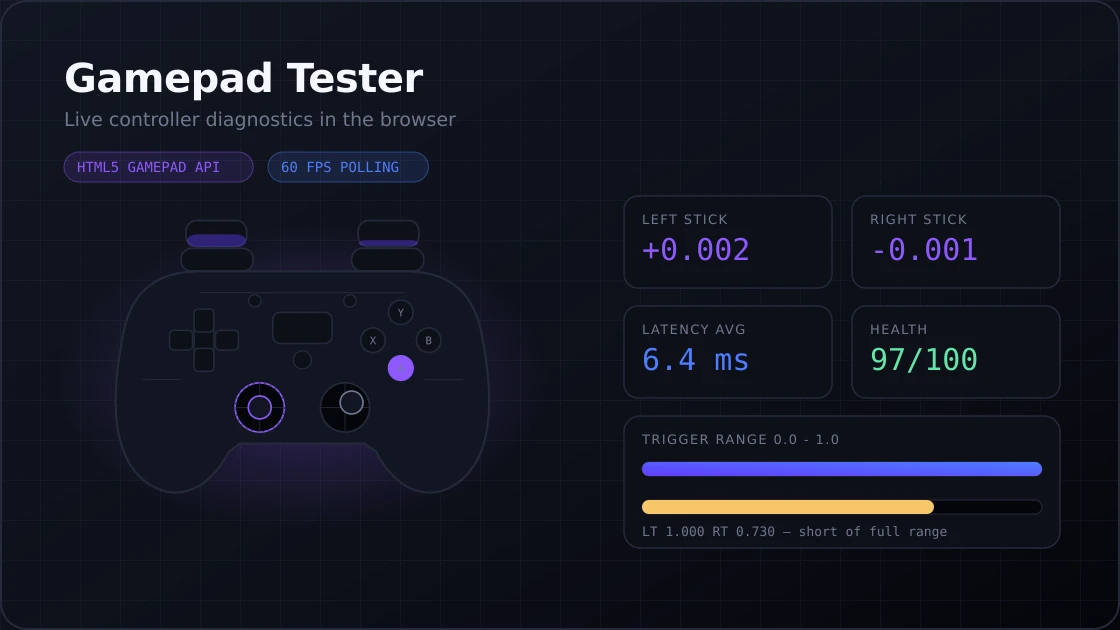
Gamepad Tester console showing live stick values, latency average and controller health score
The console reads raw values straight from the Gamepad API, before any game applies a deadzone.
  • Our Gamepad Tester PS5 works with PS5, PS4, PS3, Xbox Series, Xbox One, Nintendo Switch, and most third-party controllers.
  • No download, no drivers, no account required
  • Reads raw input before any game processing or deadzone is applied
  • Detects stick drift, trigger range issues, button failures, vibration problems, and latency

Step by step

How to Use the Gamepad Tester (Step-by-Step)

  1. 1

    Step 1: Connect Your Controller

    • USB: Plug your controller into any USB port. Windows, macOS, and most Linux systems recognize Xbox and PlayStation controllers automatically.
    • Bluetooth: Pair the controller through your OS settings first. Once the OS shows it as connected, open the tester.
    • 2.4GHz dongle: Plug the receiver in, and the controller appears just like a wired connection.
  2. 2

    Step 2: Press a Button to Activate

    The browser does not detect your controller until you press a physical button. This is a security rule built into every browser that uses the Gamepad API. It stops websites from silently scanning your connected hardware. Press any button once, and the tester activates your controller slot instantly.

  3. 3

    Step 3: Test Every Button

    • Press each face button one at a time and watch the indicator on the screen
    • Test all four D-pad directions separately
    • Click L3 and R3 by pressing the analog sticks straight down
    • Check bumpers and system buttons too (Start, Select, Share, Options)
    • Use the 60-Second Quick Test for an automatic pass or fail result across all inputs
  4. 4

    Step 4: Check Analog Sticks and Drift

    • Release both sticks completely and check the resting X/Y values
    • A healthy stick reads 0.000 on both axes at rest
    • Any non-zero value at rest means drift is present
    • Push each stick to its edges and check that it reaches the full ±1.0 range
    • Move in slow circles to check for dead spots or uneven response
  5. 5

    Step 5: Test Triggers, Vibration, and Latency

    • Pull each trigger slowly and watch the value rise from 0.0 to 1.0
    • A trigger that peaks at 0.7 or 0.8 has a range problem, even if it feels fully pressed
    • Run the vibration test with Light, Medium, Heavy, and Pulse presets
    • Check that both rumble motors respond
    • Run the Latency Test and note your average response time in milliseconds
    • Download a full report for your records

Hardware

Supported Controllers

This online gamepad tester works with any HID-compliant controller your operating system recognizes. These are the most common families.

PlayStation Controllers

  • PS5 DualSense (USB-C and Bluetooth)
  • PS5 DualSense Edge
  • PS4 DualShock 4 (USB and Bluetooth)
  • PS3 DualShock 3 (USB only on PC; Bluetooth needs third-party drivers)

Chrome and Edge give the best access to PlayStation hardware. Adaptive trigger resistance data from the DualSense is readable in Chrome.

Schematic controller diagram for playstation controllersABXY

Xbox Controllers

  • Xbox Series X/S Wireless Controller
  • Xbox One Wireless Controller
  • Xbox 360 Wired and Wireless (USB adapter required for wireless)
  • Xbox Elite Series 1 and 2
  • Xbox Adaptive Controller

All Xbox hardware uses the XInput standard on Windows, which maps cleanly to the Gamepad API. Full button, trigger, and vibration access in Chrome, Edge, and Firefox.

Schematic controller diagram for xbox controllersABXY

Nintendo Controllers

  • Nintendo Switch Pro Controller (USB and Bluetooth)
  • Joy-Con pair (detected as one combined gamepad)
  • GameCube Controller via Mayflash USB adapter
  • Wii U Pro Controller (USB)

Button labels follow the ABXY layout for cross-platform consistency in the tester.

Schematic controller diagram for nintendo controllersABXY

Generic Controllers

  • 8BitDo Pro 2, Ultimate, and SN30 Pro+
  • Logitech F310 and F710
  • Razer Wolverine and Razer Kishi
  • Steam Controller and Steam Deck
  • Generic USB HID gamepads and most third-party Bluetooth pads

Available features depend on what the controller reports to the browser. If it works with your OS, it will almost certainly work here.

Schematic controller diagram for generic controllersABXY

Diagnostics

What Gamepad Tester Checks

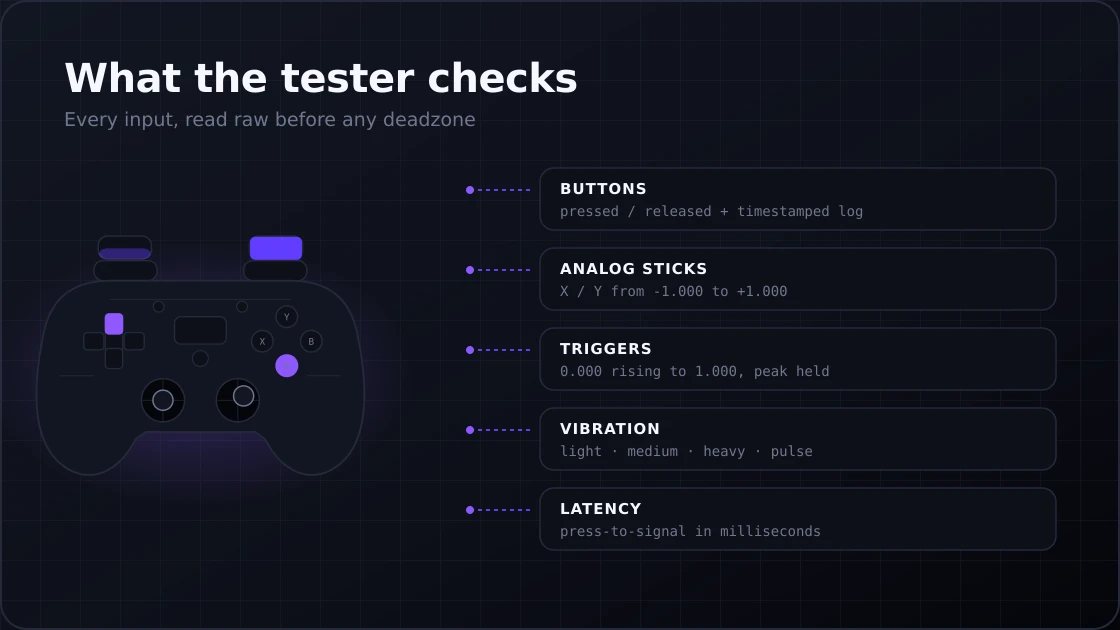
Diagram mapping controller buttons, analog sticks, triggers, vibration and latency to what the tester reads for each

Button Test

Every button returns a pressed/released state plus a timestamped log entry. The Input History panel records every press and release so you can scroll back and review. This catches buttons that do not register, buttons that register without being touched, and buttons that fire twice from a single press.
Analog Stick Test

Sticks return X and Y axis values between -1.0 and +1.0. The tester plots movement on a live visual pad. Look for:

  • Non-zero values at rest (drift)
  • Dead spots where movement produces no value change
  • A range that does not reach the full ±1.0 at the edges
  • An uneven circle when you rotate the stick slowly at full deflection

Trigger Test

Analog triggers go from 0.0 (released) to 1.0 (fully pressed). A trigger that maxes out at 0.7 feels fully pressed but is not sending a full signal. This is more common than people realize, and it affects aiming speed in shooters and acceleration in racing games. The tester shows the exact peak value so you know immediately.

Vibration / Haptic Test

The tester fires your rumble motors at adjustable intensity levels. Chrome handles this most reliably. If the left motor works and the right does not, the internal motor connection is failing or the motor itself is worn out. The Pulse preset is useful for checking whether the haptic response is consistent or stuttery.

Latency Test

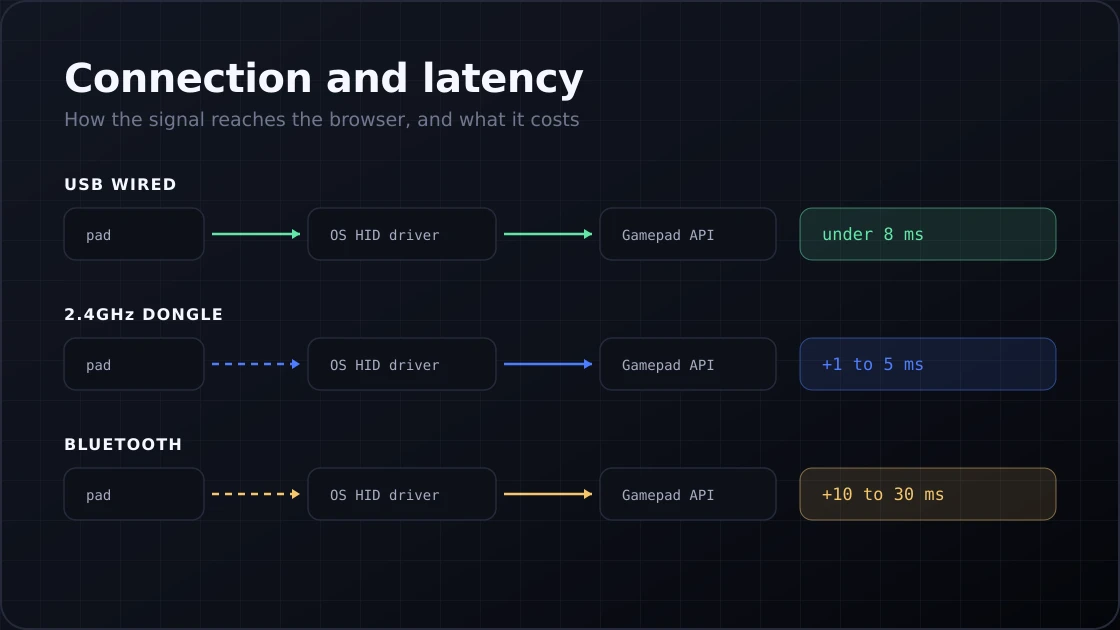
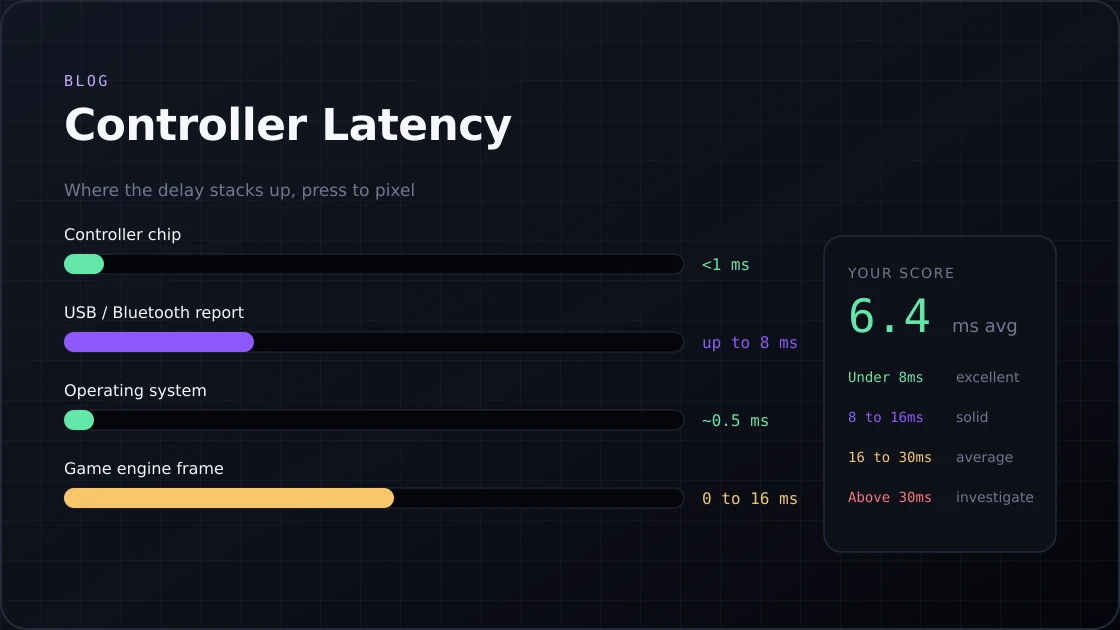
This measures the time between your button press and when the browser receives the signal, in milliseconds. Typical results:

Typical latency by connection type
ConnectionTypical Latency
USB wiredUnder 8ms
2.4GHz dongle1 to 5ms added
Bluetooth10 to 30ms added

Health Score

The tester scores your controller from 0 to 100 based on all inputs. 90 and above is excellent. Below 70, at least one input is failing or degraded. The score gives you a quick answer when you want to know if a controller is worth repairing or not.

Under the hood

How Gamepad Testers Work

01

Connecting the Controller

When you plug in or pair a controller, your operating system detects it and installs a driver. For Xbox controllers on Windows, this is XInput. For PlayStation and most others, it is the standard HID driver. The browser reads from whichever driver the OS installed.

Connection paths:

Connection paths
MethodHow It Reaches the Browser
USB wiredOS HID driver → Browser Gamepad API
BluetoothOS Bluetooth stack → HID profile → Gamepad API
2.4GHz dongleDongle appears as USB HID → Gamepad API
02

Controller Sends Signals

Every input generates a signal the moment it changes.

Signal ranges by input type
Input TypeSignal Range
Digital buttons0 = released, 1 = pressed
Analog triggers0.0 to 1.0
Analog sticksX/Y axis: -1.0 to +1.0
03

Microcontroller Reads Input

Inside the controller, a microcontroller chip scans all sensors continuously. It converts analog signals (stick position, trigger pressure) to digital values, packages everything into a controller report, and sends it to your device at roughly 1000 times per second over USB, or at the Bluetooth polling rate wirelessly.

04

Software Receives Data

The browser Gamepad API reads the controller report through the OS. It does not use event listeners for keyboard input. Instead, it polls on a cycle that matches your screen refresh rate, typically 60 times per second. The tester calls navigator.getGamepads() on each animation frame and updates the display with whatever the controller is reporting at that instant.

05

Visual Feedback Display

Every input maps to a visual element on screen:

  • Buttons: Highlight when pressed
  • Analog sticks: A dot moves to match the stick's X/Y position
  • Triggers: A bar fills from 0 to 1.0 as you press
  • D-pad: Arrow indicators light up per direction

The display updates in real time. There is no delay between what the controller sends and what you see.

The common failure

Understanding Controller Drift

Stick drift happens when your analog stick reports movement without you touching it. The character walks by itself. The camera drifts slowly to one side. Your crosshair pulls off target. Over 40% of early DualSense and DualShock 4 controllers develop measurable drift within two years of heavy use. It is the most common controller failure across every major brand.

What Causes Stick Drift

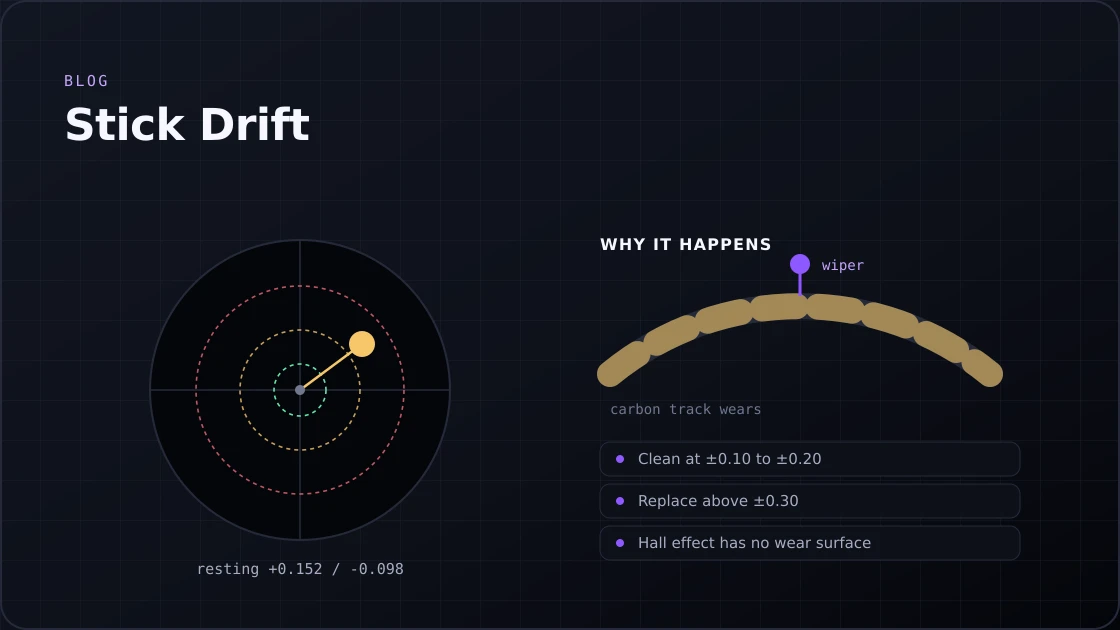
The joystick module inside most controllers uses a potentiometer: a carbon film resistive strip that changes resistance as the stick moves. When the stick is centered, the resistance should read a specific value that the controller maps to 0.000. Over time:

  • Carbon dust from the resistive track accumulates on the contacts
  • Skin oils and debris alter the resistance at the center position
  • The return spring weakens, and the stick rests slightly off-center
  • Physical impacts misalign the mechanism without visible external damage

Controllers with Hall Effect sensors use magnets instead of contact-based resistors, which is why brands like 8BitDo and Gulikit market their controllers as drift-resistant. The magnetic detection has no physical wear surface.

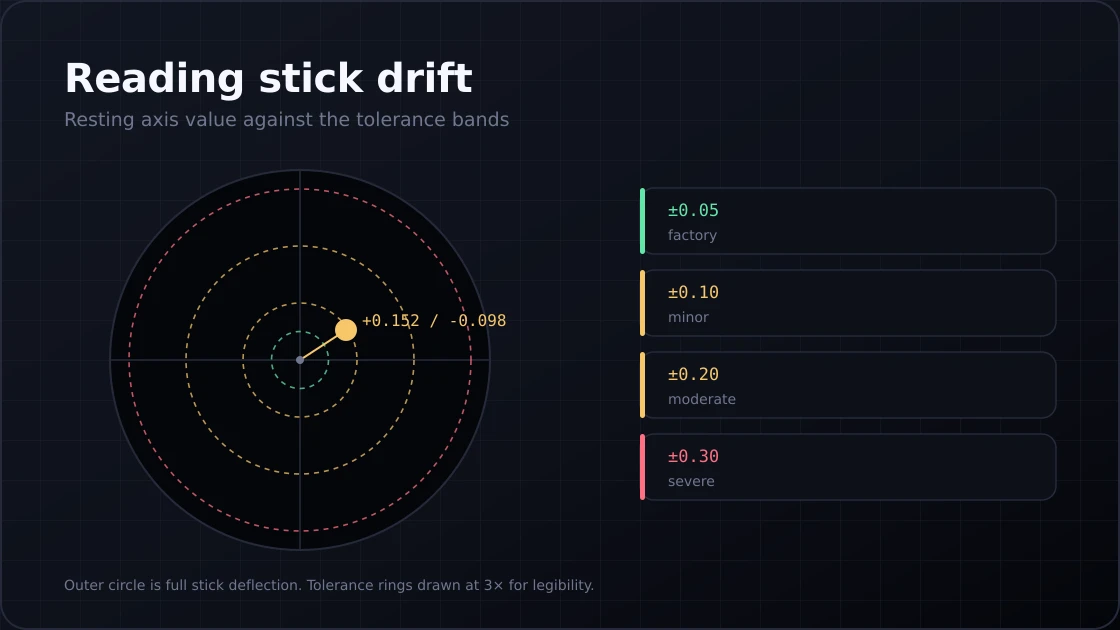
Diagram of an analog stick resting off-centre, plotted against the factory, minor, moderate and severe drift tolerance rings
A resting stick should read 0.000 on both axes. Anything else is drift, and the size of the number decides what to do about it.

How to Read Your Drift Numbers

How to read your drift numbers
Resting Axis ValueStatusAction
0.000 to ±0.04Factory precisionNothing needed
±0.05 to ±0.10Minor driftMonitor monthly, games mask it
±0.10 to ±0.20Moderate driftClean with 90%+ isopropyl alcohol
±0.20 to ±0.30Significant driftClean first, replace the module if it returns
Above ±0.30Severe driftReplace the joystick module

Software vs Hardware Drift

The tester reads raw axis values before any game applies a deadzone. If the tester shows drift but your game feels normal, the game is masking it. The stick is still degrading. Check the raw values monthly and track whether the number is growing. A value of ±0.08 today that becomes ±0.18 in three months tells you the potentiometer is wearing fast. You want to know that before the drift gets bad enough to cost you a ranked game.

Field guide

Common Controller Problems

Analog Stick Drift

Symptom
Character moves without input. The camera rotates on its own.
What the tester shows
Non-zero X or Y value when both sticks are released.
Fix
Clean the joystick base with 90%+ isopropyl alcohol. Recalibrate the deadzone in game settings. Replace the joystick module if drift continues.

Unresponsive or Sticky Buttons

Symptom
Missed inputs, double registers, buttons that need extra pressure.
What the tester shows
Button does not highlight on press, or fires twice in the Input History log.
Fix
Clean contacts with isopropyl alcohol. Check rubber membrane pads for wear. Re-solder loose connections if the button registers intermittently.

Trigger Not Reaching Full Range

Symptom
Trigger feels fully pressed, but the action feels slower or underpowered.
What the tester shows
Trigger value peaks at 0.6 to 0.8 instead of 1.0.
Fix
Recalibrate in system settings. Clean the trigger mechanism. Replace trigger springs if the range does not improve.

Input Delay and Button Lag

Symptom
Visible gap between pressing a button and seeing the result on screen.
What the tester shows
Elevated readings in the Latency Test panel.
Fix
Switch to a USB wired connection. Change USB ports. Update controller firmware. Close bandwidth-heavy background applications.

Vibration Not Working

Symptom
No rumble feedback, or only one side of the controller vibrates.
What the tester shows
The vibration test produces no response on one or both motors.
Fix
Check that vibration is enabled in OS settings. Update firmware. If one motor responds and the other does not, the motor connection is loose, or the motor has failed.

Controller Detected But No Input Registers

Symptom
Controller appears in the system with the LED on, but nothing responds.
What the tester shows
The controller slot appears but shows zero button or axis activity.
Fix
Switch input mode between XInput and DirectInput. Reinstall HID drivers. Confirm the controller is not stuck in firmware update mode. Test in a different browser.
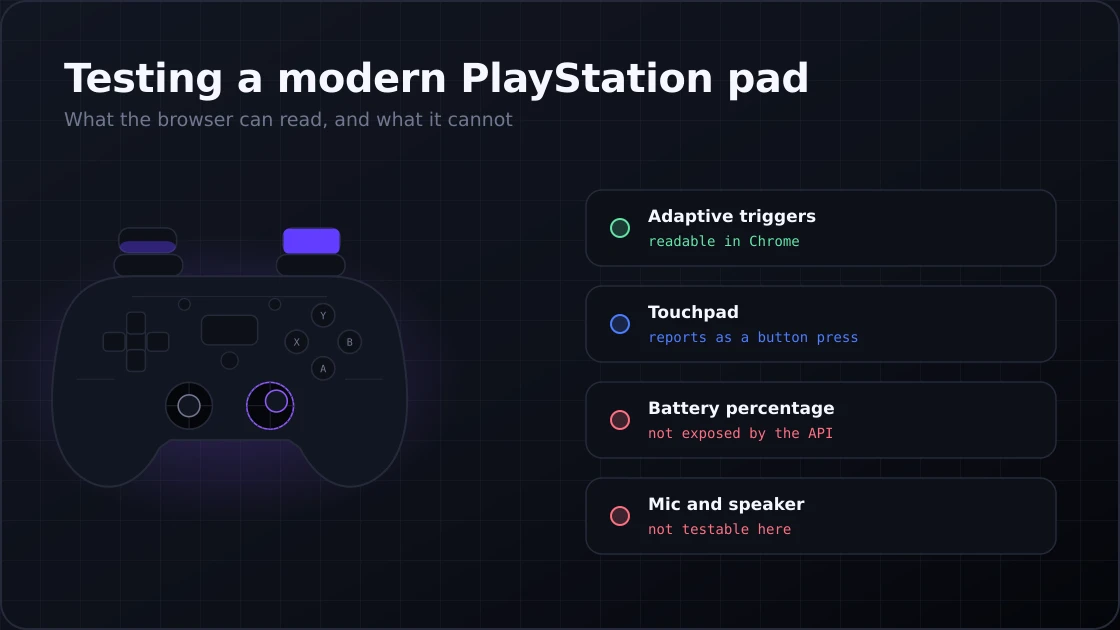
Schematic diagram showing which PS5 DualSense features the browser Gamepad API can read and which it cannot

PlayStation

Gamepad Tester PS5 DualSense

The PS5 DualSense is one of the most-tested controllers on this tool in 2026. It connects via USB-C or Bluetooth and gives full button and axis access in Chrome and Edge. A few things to know:

  • Adaptive trigger resistance data is accessible through Chrome. Firefox does not currently expose it.
  • The touchpad registers as a button press through the Gamepad API, not as a full touch surface.
  • Early DualSense units from 2020 to 2022 show higher drift rates. Test the resting axis values before the warranty runs out.
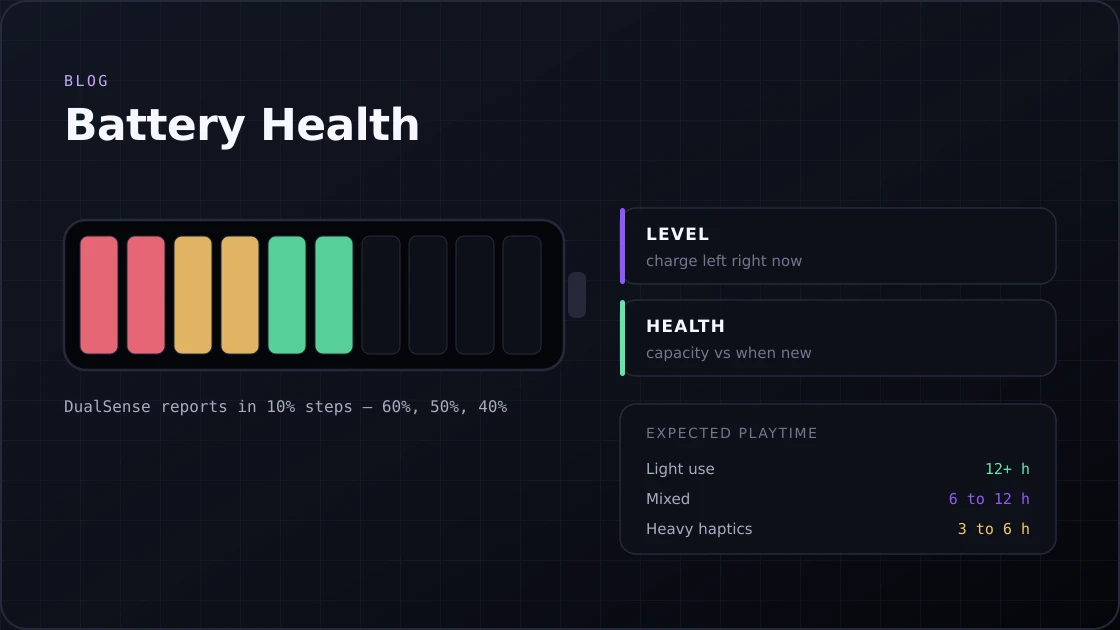
  • Battery percentage is not readable through the browser Gamepad API

The DualSense also has a built-in microphone and speaker. Neither is testable through the Gamepad API. For full PS5 controller testing, including haptic patterns, use USB over Chrome on Windows or macOS.

Xbox

Gamepad Tester for Xbox Controllers

Xbox controllers are the most reliably detected gamepads on Windows. The XInput standard is built into the OS and maps directly to the Gamepad API with no extra setup. What you get:

  • 01Full button, trigger, and vibration support in Chrome, Edge, and Firefox
  • 02Both wired and wireless connections work (Bluetooth and the 2.4GHz USB adapter)
  • 03Xbox Elite Series 2 paddles register as standard buttons in the tester
  • 04On macOS, Xbox controllers use the HID profile and work in Chrome and Edge

One thing worth noting: the Xbox controller on macOS does not always expose vibration through the Gamepad API. Use Windows or Chrome on macOS for the most complete test.

Before you pay

How to Test a Used Controller Before Buying

Buying a used controller is risky. A controller that looks fine can have significant internal wear. Two minutes with an online gamepad tester tells you exactly what you are getting before you hand over money.

What to Check Before You Pay

  1. 1

    Stick drift test: Release both sticks and read the resting values. Anything above ±0.10 is a red flag. Above ±0.20, walk away.

  2. 2

    Full button test: Press every button, bumper, trigger, and D-pad direction. Check the Input History log for any missed presses or double fires.

  3. 3

    Trigger range: Pull each trigger fully and confirm the value hits 1.0 or very close to it.

  4. 4

    Vibration: Run the rumble test on both motors. One silent motor means an internal failure.

  5. 5

    Latency: Run the latency test over USB. A wired controller reading above 20ms needs investigation.

Red Flags in Used Controllers

  • Stick resting values above ±0.20 on either axis
  • Any button that does not register in the tester
  • A trigger that maxes out below 0.8
  • One vibration motor is silent while the other works
  • The controller connects and disconnects during the test

Connection

Wired vs Wireless Controller Testing

The connection type affects what the tester can measure. This matters more than most people realize.

Wired vs wireless comparison
ConnectionTypical LatencyVibration SupportStability
USB wiredUnder 8msFull (Chrome/Edge)Highest
Bluetooth10 to 30ms addedFull (Chrome/Edge)Good above 50% battery
2.4GHz dongle1 to 5ms addedFull (Chrome/Edge)Very good
Diagram comparing USB wired, 2.4GHz dongle and Bluetooth signal paths from controller to browser with their typical added latency

Wired is the best choice for running a diagnostic test. The latency numbers are cleaner, and the connection does not drop during testing. Bluetooth signal quality also drops when the controller battery falls below about 20%, which causes phantom inputs and latency spikes that look like hardware failures but are just a power issue.

When comparing two controllers, use the same connection type for both. A Bluetooth controller will always show higher latency than a wired one, even if its hardware is in better condition.

Compatibility

Browser Compatibility for Gamepad Tester Web

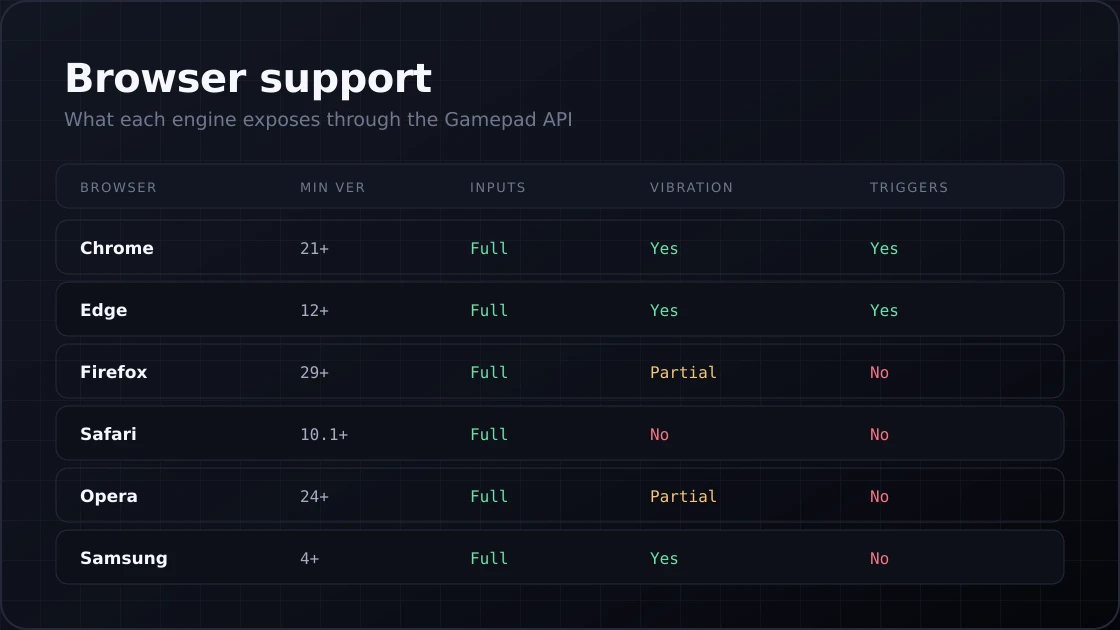
The HTML5 Gamepad API has broad browser support in 2026. Chrome and Edge give the most complete feature access.

Browser compatibility for the HTML5 Gamepad API
BrowserMin VersionButtons/SticksVibrationAdaptive Triggers
Chrome21+FullYesYes (DualSense)
Edge12+FullYesYes (DualSense)
Firefox29+FullPartialNo
Safari10.1+ macOSFullNoNo
Opera24+FullPartialNo
Samsung Internet4+FullYesNo

If vibration is not working and everything else is, the first thing to check is which browser you are using. Safari does not support rumble testing through the Gamepad API at all. Firefox supports it inconsistently depending on the OS and controller combination.

Mobile Browser Support

  • Android: Chrome for Android and Samsung Internet both support full button and axis testing. Haptic support depends on the browser version.
  • iOS: Safari 16.4+ supports basic gamepad input. Button and axis tests work. Vibration and adaptive trigger testing are not supported on iOS.
  • Connect your controller via Bluetooth through the OS settings before opening the tester on any mobile device.
Support matrix showing input, vibration and adaptive trigger availability across Chrome, Edge, Firefox, Safari, Opera and Samsung Internet

Operating systems

Gamepad Test Online on Different Platforms

Windows PC

Windows 10 and 11 handle Xbox controllers natively through XInput. PS4 and PS5 controllers install automatically over USB on both versions. Use Chrome or Edge for the most complete test, including vibration. The Xbox Accessories app handles firmware updates for Xbox hardware.

Mac

PS5 DualSense and Xbox Series controllers pair via Bluetooth on macOS 12 and above. USB also works on both. Chrome on macOS gives the best feature coverage. Vibration support through the Gamepad API on Mac is less consistent than on Windows, especially for non-Xbox controllers.

Linux

USB is the most reliable connection method on Linux. Bluetooth support through the Gamepad API varies by distribution and kernel version. The tester works in Chrome and Firefox on most major distros. If a controller connects but shows no input, check the joystick device permissions.

Android

Bluetooth and USB OTG connections both work with Chrome for Android and Samsung Internet. The tester runs entirely in the browser. No app needed. Latency and button testing are available. Haptic testing depends on the browser version and the controller.

iOS

Safari 16.4 and above supports basic gamepad input on iOS. Button and axis tests work. Vibration and trigger range testing are not currently supported. Pair the controller via Bluetooth in iOS Settings before opening the tester.

If nothing shows up

Troubleshooting: Controller Not Detected

  1. 01

    Refresh the Page

    If your controller was connected before the page loaded, the API may have missed the connection event. Reload the page, then press any button on the controller. This fixes the majority of "controller not found" reports.

  2. 02

    Check the Physical Connection

    • Make sure the USB cable is fully seated at both ends
    • Not every USB-C cable carries data. Try a different cable if the controller is not detected.
    • For Bluetooth, confirm the pairing is complete in OS settings, not just started
    • Check that the controller LED shows a paired state, not a searching pattern.
  3. 03

    Use Chrome or Edge

    Firefox and Safari miss some Gamepad API features. If something is not displaying correctly, switch to Chrome or Edge and reload.

  4. 04

    Allow Gamepad Permissions

    Some browsers show a permission prompt for gamepad access. Click Allow. If you previously denied it, go to Site Settings, find Gamepad, and reset the permission before retrying.

  5. 05

    Check Battery Level

    Low battery causes intermittent disconnections, phantom inputs, and latency spikes. Charge the controller fully before running any diagnostic test. A low battery will give you inaccurate readings and make hardware problems hard to distinguish from power problems.

  6. 06

    Update Drivers on Windows

    Open Device Manager and look for controller entries with a warning icon. Right-click and update the driver. For Xbox controllers, use the Xbox Accessories app to check for firmware updates. For PlayStation controllers, the native Windows HID driver covers most cases without additional software.

Who it is for

Who Needs a Gamepad Test

Competitive and Casual Gamers

Stick drift at ±0.15 is invisible in a casual game with a generous deadzone. In a competitive shooter or racing sim, that same drift shifts your aim constantly. Testing monthly means catching the problem before it affects your performance.

People Buying Used Controllers

A two-minute test before buying a used PS5 controller can save you the cost of the controller. The tester shows exactly what the hardware reports.

Repair Technicians

Document the controller's baseline before repair. After replacing the joystick module, run the full test again. The before and after axis values prove the fix worked, which is useful when customers want confirmation.

Streamers and Content Creators

Phantom button presses or stick drift during a live stream look like player mistakes. Testing before going live takes two minutes. It also helps when troubleshooting whether something strange on screen is the controller or the game.

Parents and Casual Users

Kids are hard on controllers. The tester runs in a browser, needs no installation, and shows a clear visual result. If the left stick is jumping around with no input, the controller needs attention. No technical knowledge is required to read that.

Game Developers and QA Teams

Raw axis data, button timestamps, and input history logs are useful for mapping verification and compatibility testing across controller hardware. Compare Mode lets QA run two controllers simultaneously to verify consistent behavior.

Difference

Why Our Gamepad-Tester Is Different

Most basic controller testers only show whether a button lights up. That tells you almost nothing about the actual condition of the hardware. This tool gives you the raw numbers the controller is reporting, without any game processing getting in the way.

What sets this tester apart:

  • Raw API datareads directly from the HTML5 Gamepad API before any deadzone or sensitivity filter
  • Drift Detection panelplots resting axis values over time, so you can see if drift is worsening
  • Health Scorea single 0 to 100 score across all inputs combined
  • Latency Testmeasures actual input response time in milliseconds
  • Compare Modeallows testing two controllers at once, side by side
  • 60-Second Quick Testautomated pass/fail result across all inputs
  • Downloadable reportfull test results saved as a text file
  • No installationworks entirely in the browser, nothing stored or transmitted
  • Up to 4 controllerscan be tested using multiple gamepads simultaneously

Keep it healthy

Preventive Maintenance Tips

  • Run a full gamepad test online once a month if you play more than 10 hours per week.

  • After any session longer than 3 hours, check the resting stick values before putting the controller away. Heat temporarily affects sensor readings, and you want to see if there is underlying drift.

  • Keep controllers away from dusty surfaces when not in use. Carbon track contamination is the leading cause of potentiometer drift.

  • Never store a controller with the analog sticks pressed against a surface or under something. Long-term compression accelerates wear on the return spring.

  • If the controller has been dropped, run the full test immediately. Impacts can shift the joystick return spring without causing visible external damage.

  • Clean the stick base monthly with a dry microfiber cloth. For deeper cleaning, 90%+ isopropyl alcohol works well. Let it dry completely before reconnecting.

  • Use wired mode for competitive gaming. It removes connection variables and gives you cleaner diagnostic data when something goes wrong.

FAQ

Frequently Asked Questions

The HTML5 Gamepad API does not reveal hardware information until the user interacts with the page. This is a browser security requirement, not a problem with the tester.

Any non-zero resting value on the X or Y axis is technically drift. Under ±0.05 is within normal factory tolerance. Between ±0.05 and ±0.15, it is present, but games often mask it with default dead zones.

Vibration testing requires Chrome or Edge. If you are in Chrome and vibration still does not work, check that vibration is not disabled in your OS settings and that the controller is not in a power-saving mode.

Yes. Android devices running Chrome for Android or Samsung Internet support full button and axis testing. iOS devices on Safari 16.4 and above support basic input testing.

No. All input data is processed locally in your browser using the HTML5 Gamepad API. The tester has no account system and stores nothing.

Windows' built-in calibration tool is designed for older DirectInput devices. This tester reads directly from the Gamepad API at up to 60 updates per second and shows exact floating-point axis values.

Yes. Up to four controllers can be active simultaneously. Use Compare Mode to view two controllers side by side.

The tester reads raw axis values before the game applies a deadzone. If the game feels normal but the tester shows drift, the game is filtering it out. The stick is still degrading.